Three Playtesting Modes
1. Play My Game
- Players click the Play button at the top, then select Play My Game
- Tests their own game individually
- Good for personal testing during build time
2. Playtest Menu
- Players click Play, then select Playtest Menu
- Opens a menu showing everyone's games in the current server
- Players can individually test a specific friend's game
- Click Play on any game to teleport to a server with only that game loaded
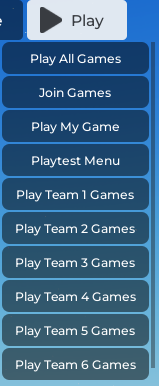
3. Play Team 1-6 Games (Class Playtest)
- Players click Play, then select a team number (Team 1 through Team 6)
- Teleports everyone who selects the same team number to play that team's published games together
- Teacher only: Click the Play All Games button to start the game for everyone
How to Run a Class Playtest
This is how the curriculum playtests work (Missions 5, 7, 9, 11, 13):
- Everyone clicks Play Team [number] Games and chooses the same team number to teleport to
- Teacher clicks "Play All Games" button to start the game for everyone
- Spend ~3 minutes exploring each team's server
- Rotate through team servers (timing depends on how many students at camp)
- After exploring all servers, students teleport back to their own team server
Before a Playtest
- Make sure each group has loaded their preferred game on their plot
- Remind students to save their work before playtesting
After a Playtest — Returning to Your Server
- Enter your unique Buzzy team code
- Claim a plot (your game auto-loads when you claim)
- Wait for the teacher to start the next activity