Accessing the Admin Panel
The Admin Panel button appears in the top left of the screen when you're in a game server.
Requirements to see the Admin Panel:
- You must have submitted your Coaches Quiz
- You must have joined the Buzzy Roblox Community group on Roblox
- If you can't see the Admin button, check both of these requirements
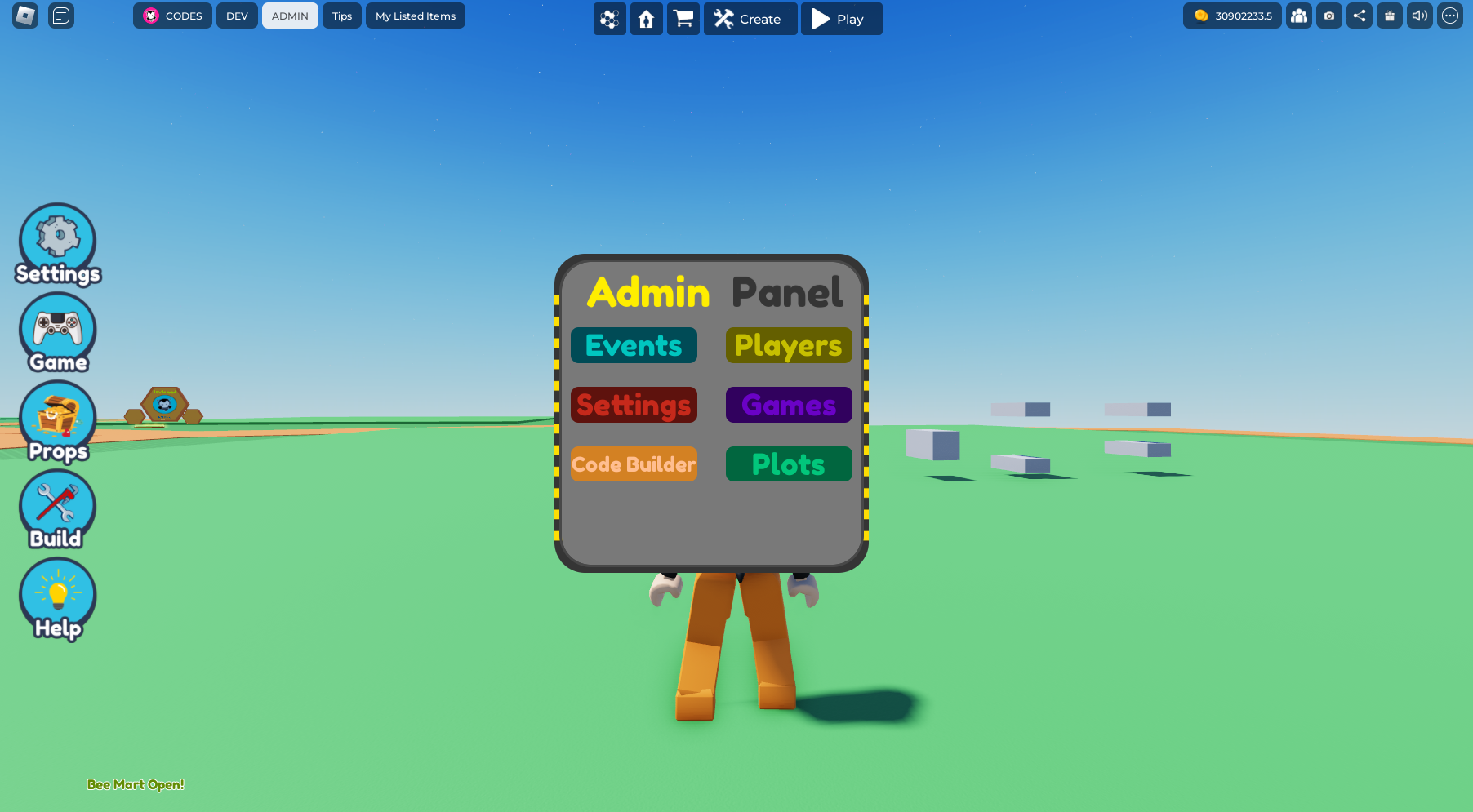
Using the Admin Panel
- The Admin Panel is draggable — you can move it around the screen
- Click the ADMIN button on the top left to show/hide the panel
Starting Events (BeeMart Rush)
- Click the Admin button (top left)
- Click Events to access the event panel
- Click Start to begin the Shop Rush event
- Students will have 5 minutes to grab free items
Important: You need to start the event in each team's server separately. Go to each team's server and repeat these steps.
When to Use the Admin Panel During Camp
| When | Action |
|---|---|
| Before Mission 3 | Start Shop Rush in each team server |
| Before Mission 8 | Start Shop Rush in each team server |
| Before Mission 10 | Start Shop Rush in each team server |
| Before Mission 12 | Start Shop Rush in each team server |
| Before Mission 14 | Start Shop Rush in each team server |
| Class Playtests | Use "Play All Games" to start games for everyone |
Troubleshooting
- Admin button not visible? Submit your Coaches Quiz and join the Buzzy Roblox Community group
- Events not starting? Make sure you click "Events" first, then "Start" — not just the Admin button
- Need to start in multiple servers? You must visit each team server and start the event separately