How Buzzy Codes Work
Each camp has two types of codes:
Camp Buzzy Code
- Access from your camp dashboard on edu.buzzy.gg
- This code gets everyone into the same camp hive
Team Codes
- You'll have unique codes for teams/servers 1-6 (one per team, max 6 teams)
- Write these down on post-it notes or cards for each team to use
- Groups should be no more than 6 students per team
How Students Enter Their Team Server
- Open Roblox and search for Buzzy Creators Hive
- Favourite the game and click Play
- When the game loads, a menu appears with "Buzzy Code" — enter the camp buzzy code and click Use this Code
- Students get teleported to the camp hive
- From within the hive, click the Buzzy Code button again and enter the unique team code to join their team server
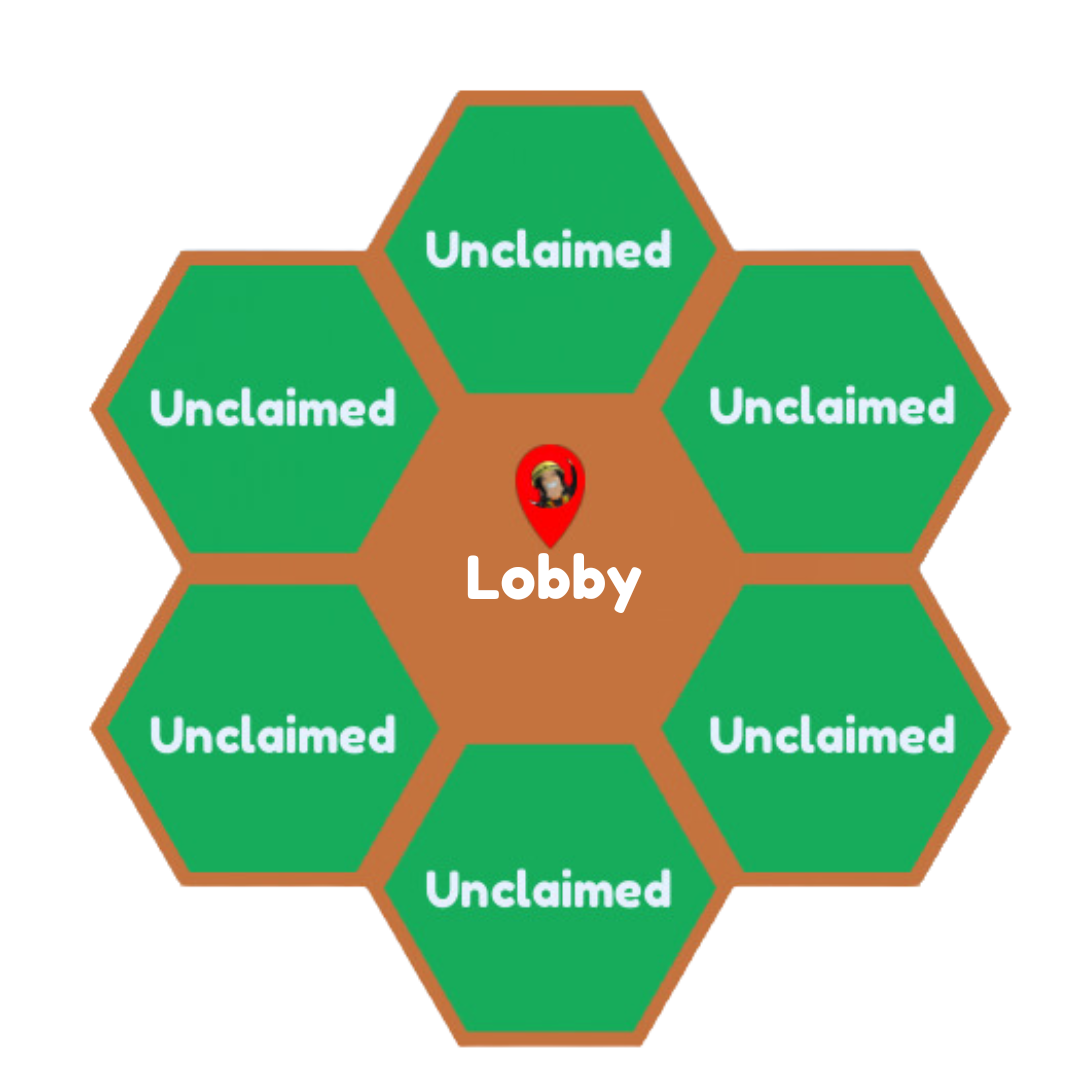
Claiming a Plot
Once in their team server:
- Click Create at the top of the screen
- Select a plot to build on
- Claim the plot by stepping on the green tile at the front — it turns red when claimed
Staff Testing Codes
If you're a staff member testing before a camp:
- Use "ccstaff" as your hive code
- Enter the portal to demo the game
- For building practice, click the Buzzy button and enter codes ccstaff-1 through ccstaff-6 to claim a plot
- If there are existing builds on an unclaimed plot, claiming it gives you a blank slate (this won't permanently delete the previous work)
Autosave Feature
Games now autosave automatically — students don't need to manually save as they create. The game saves in the current slot they're working on.