Mission 3: World Build Basics
Students learn the core building tools by placing and manipulating props.
Place a Prop
- Click the props icon to open the props menu
- Select the prop you want to add
- Move your avatar to where you want to place it and click Place
Move a Prop
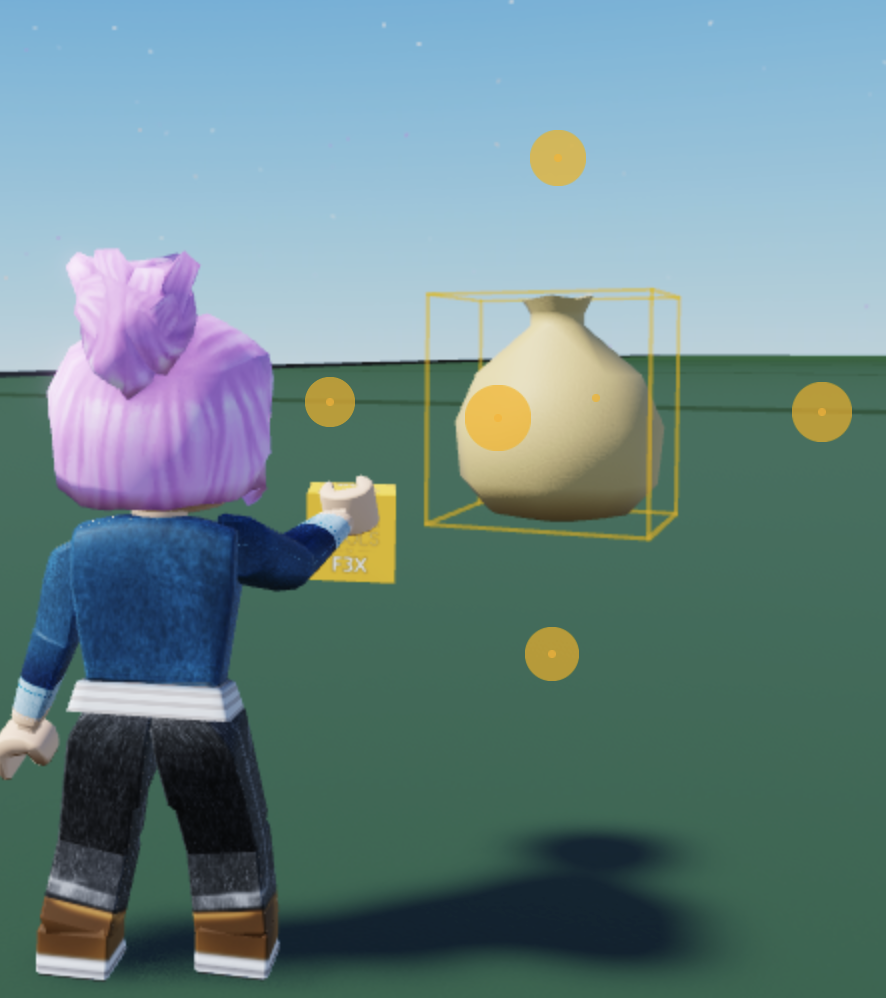
- Click the build tools icon to open build tools
- Click the Move tool
- Select the prop you want to move
- Click on the yellow circles to move it up, down, forward, back, left, or right
Resize a Prop
- Open build tools
- Click the Resize tool
- Select the prop
- Click on the blue circles to resize in all directions
Rotate a Prop
- Open build tools
- Click the Rotate tool
- Select the prop
- Click on the dark blue, red, or green circle to rotate on each axis
Clone a Prop
- Open build tools
- Click the Move tool and select the prop you want to clone
- Click the Clone tool
- Move the cloned prop off the original
Delete a Prop
- Select the prop you want to delete
- Click the X (delete) button
Undo / Redo
- Click Undo to undo your last action
- Click Redo to redo your last action
Mission 4: World-Build with Props (30 minutes)
Students have 30 minutes to build a world on their plot using the tools from Mission 3.
Class Brainstorm Ideas
Before building, discuss world ideas with the class:
- City, Forest, Space, Apocalypse, Farm, Medieval, Pirate — anything they can imagine!
Tips for Coaches
- Encourage students to plan their map before jumping in
- Remind them they can use Move, Rotate, Resize, Clone, Delete, and Undo/Redo
- After building, everyone will explore each other's worlds in Mission 5