Mission 8: Make a Story Mini-game (15 minutes)
Students create a Story mini-game using the story editor. They'll have 15 minutes before the class playtest.
Before Starting — Two Options
Students choose how to start their story game:
Option 1: Create with Current Props
- Keep all existing props on the plot
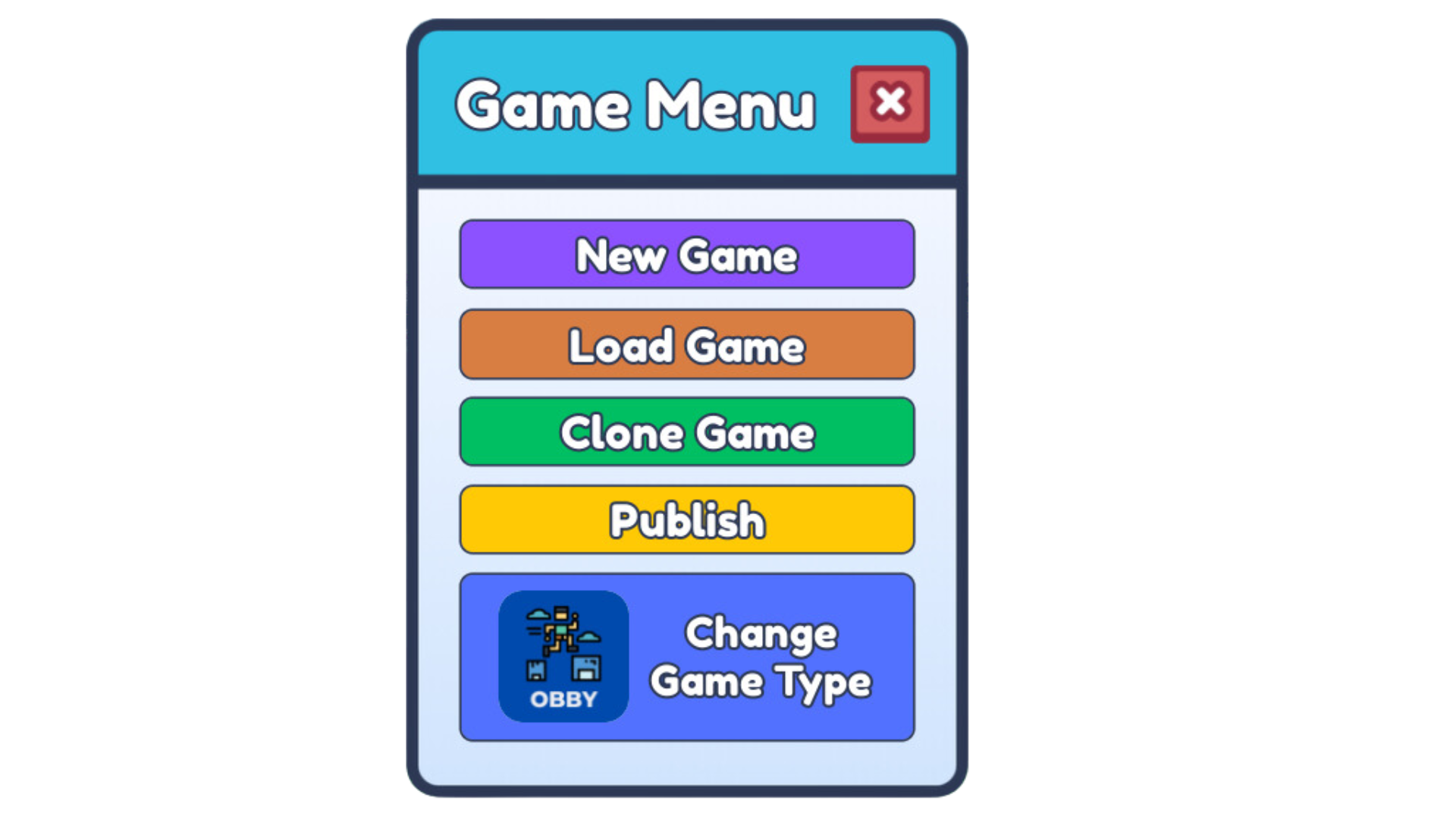
- Open the game menu, select your current game, click on Story
- A key quest item spawns in the middle of the plot
Option 2: Create on a Blank Plot
- Save current builds and start fresh
- Open the game menu, select an empty slot
- Enter a title for your game and click Create
- Select Story as the game type
- A key quest item spawns in the middle of the plot
Writing Your Story
- Click the Story Editor icon (pencil/book icon) to open the story editor
- Write your story with choices for the player
- Important: Select a win condition in the story editor
- Click Save in the story editor window
Key Tips for Coaches
- Remind students to select a win condition before saving
- The story game type must be set to "Story" — the story editor icon only appears when game type is Story
- Run a class brainstorm before building to discuss story ideas
- Players must make choices to complete the story — ask the class "which choice is better: choice 1 or 2?"